Tech Blog

Pages

  • Home
Showing posts with label Tips and Tricks. Show all posts

Wednesday, June 19, 2013

Transfer Music and Videos to iOS devices(iPod, iPod touch, iPhone, iPad) using SynciOS - Easier than iTunes

Transfer Music and Videos to iOS devices(iPod, iPod touch, iPhone, iPad) without iTunes
Dear Admin,

I bought an iPad recently. I luv it, but i hate iTunes. It looks complicated for adding video files to my iPad.
So tell me is there any way to transfer video files to my iPad easily.

Regards,
Frustrated iTunes User.


Dear frustrated user,
First of all a note to you that you are not the only one to face this problem.

For those who hate iTunes for its complexity, here comes a free tool called SynciOS, which is absolutely newbie friendly.

SynciOS automatically recognizes your iPad, iPhone, or iPod when it's connected to your PC. It displays a host of information about the device, including its battery status, whether or not is jailbroken (it works with both kinds of devices), and even your estimated contract expiration date. Like older versions of iTunes, SynciOS uses a column on the left of the screen to let you navigate through the application and a connected device, while displaying more information in the main screen. (The latest version of iTunes eschews this layout in favor of what Apple calls a "simplified view," but I actually find that harder to navigate.) 

Features Of Syncios To Sync iOS Device:

  • Access all the files and folders of iOS device.
  • Supports iPod, iPod Touch, iPhone, and iPad.
  • Works with iTunes on computer.
  • Transfer files from iOS to computer
  • Sort the music files according to the folder.
  • Multi-select functionality.
  • Check the device info at any point of time.

Download And Install Syncios:


Click above image to download and install Syncios on your PC. You don’t need any extra app to install on your iPhone. Simply download and install Syncios and get started to manage your iOS device. Remember that like other alternatives to iTunes, you cannot play any song or view any image file in Syncios. Apart from this Syncios is one of the best PC tool to manage your iOS device.

Posted by Fari at 10:30 PM No comments:
Email ThisBlogThis!Share to XShare to FacebookShare to Pinterest
Labels: Free Stuff, idevice, iTunes, iTunes Alternative, SynciOS, Tips and Tricks, tutorial

Saturday, June 8, 2013

How to get 50% OFF(Rs.150 Max) Coupon code in Paytm

How to get 50% OFF(Rs.150 Max) Coupon code in Paytm

Paytm.com is most popular, secure and trusted online website for mobile, DTH, Data Card recharges of most Indian companies and also to buy bus tickets online and Bill Payments.

 
 Below are the Steps to make use of this deal:

1. First visit this link
2. Click the Share on Facebook button on the right.
3. A pop-up will be shown in that simply click Post.
4. As soon as you shared it on your wall, Your Coupon code will be visible on the same Page.
5. Save the Coupon.
6. Now book the ticket by entering Source and Destination.
7. The list of bus will be shown. In that list, select the bus and Login/Register
8. Tick “I have a Promo code”
9. Apply Coupon Code to get disocunt.
10. Pay the Remaining Amout.
Cheers:-)


Terms & Conditions:
* The coupon code is valid till 7 days from the date of coupon generation.
Posted by Fari at 10:25 AM 5 comments:
Email ThisBlogThis!Share to XShare to FacebookShare to Pinterest
Labels: Offer, Tips and Tricks, tutorial

Monday, August 20, 2012

Online Document Conversion


If you are more than a normal computer user, you will be aware of the importance of Document conversion.
Converting documents can allow them to be read in several different applications. Although there are many software available for this purpose, they are time consuming sometimes. Therefore, this article is based on a free online resource for document conversion, Cometdocs.

Online document conversion has never been done easily than it can be done at Cometdocs. To ensure high quality conversion in minimal time, Cometdocs have set up their own network of websites based on document conversion between different formats. It can safely be declared as one of the leading resources online considering its illustrious list of formats between file conversion can take place. It is simple and fast. All you need to do is to upload a file that you wish to convert. Next, choose the format in which the file needs to be converted. Lastly, enter your email address in the address box provided and press “Send”, check your email and download the new file.

Supported Formats:

  • PDF to Word
  • PDF to Excel
  • PDF to PowerPoint
  • PDF to CAD
  • PDF to HTML
and vice versa. For witnessing the entire list, click here.
I personally have found Cometdocs to be a remarkable resource. Therefore; to all the readers, I’d suggest that Cometdocs is the place to be whenever the need for online document conversion arises. Its definitely worth a shot.
Posted by Fari at 6:43 PM No comments:
Email ThisBlogThis!Share to XShare to FacebookShare to Pinterest
Labels: Application, Tips and Tricks

Thursday, August 16, 2012

How to Detect a Infected Program


Do you know that thousands of Computers are being infected with some kind of Trojan/Malware each second as we speak? And no, it’s not only the Windows Users that’s being targeted nowadays; even Operating Systems like i0S and Linux are now the favorite hunting grounds for hackers.

What’s the root cause of such massive computers falling prey to malwares?

The answer is Ignorance and lack of awareness among the general public. The biggest misconception among the people is, since they have a “Premium” Anti-Virus installed in their computer, they are 100% secure. Nothing could be further from the truth.
 
Antivirus provides protection only from the known viruses but what about the unknown and new ones?
Do you know, hundreds of new viruses are being coded and released every day? To make it worse, there exist special types of software called Crypters which makes a known virus Fully UnDetected(FUD) without changing the behavior of the virus, in some cases adding more teeth to them.


Let us learn how to find wheather the program is infected or not


In this little tutorial ill show you how to detect if a program is infected. A virus scan is not always safe because the virus may be FUD(fully undetectable, its not detected by anti viruses).


 For this tutorial we are going to use Sandboxie.
Sandboxie is a program that allows you to run programs in an isolated space. This prevents programs from making permanent changes in your computer.

 1) First of all go and download Sandboxie from its official website. Than install it. (Download it here)
  
I am using a virus binded inside a Image file.


2) Before doing anything go ahead and open sandboxie console.

3) Now open the virus on sandboxie. To do that just right click on the program and choose "Run sandboxed".


 4) If more than 2 processes are trying to run with the program than the file is infected. Another thing to look if the program crashes when running. If it crashs than its definitly infected
 

If you have any questions please comment......:-)
Posted by Fari at 11:04 AM No comments:
Email ThisBlogThis!Share to XShare to FacebookShare to Pinterest
Labels: Tips and Tricks

Thursday, August 9, 2012

Capture Videos of Google Earth

This is a short video animation recording using the free version of Google Earth. The video in high-resolution (720p HD) and the animation plays very smoothly but before I share the actual software that I used to record this movie clip, please read the guidelines for using content from Google Earth and Google Maps:
[Offline use] If your proposed offline use of Google Maps or Google Earth is limited in scope, the concept of ‘fair use’ may apply
[Online use] You do not need permission to create and display video created from Google Maps or Google Earth in a video, whether hosted on your own site or through a service such as YouTube. You must purchase a copy of Google Earth Pro if exporting motion video, because screen capturing is not allowed.
If your usage meets the ‘fair use’ criteria, you can use the free Wegame client to record movies of Google Earth on your Windows machine. Wegame, a popular tool for recording video games, was recently updated and it now supports full-screen recording at 30 frames-per-second for smooth video. Unlike most other screencasting software where you just hit the Record hotkey to start recording, it may take a couple of tries for you to get comfortable with the Wegame capture process.
Launch the Wegame client and connect with your online account – you don’t have to upload your movies online but you still need to login for the software to work. Then launch Google Earth and you’ll see a green square box inside the Earth program. Hit F6 and the square should disappear meaning the animations are getting recorded. Hit F6 to stop the capture and the recorded video will get saved in your My Documents folder. If you are recording Google Earth animations on a slow machine, try lowering the frame rate to 15 or 20 and also switch to Half-screen recording. The video is saved in Windows Media format that you can upload to YouTube or play in almost every media player.
Posted by Fari at 2:39 AM No comments:
Email ThisBlogThis!Share to XShare to FacebookShare to Pinterest
Labels: Tips and Tricks

How to make Google Search Engine in YOUR NAME


Hi friend, you already know about google.The world leading search engine.and i know you also think about your own google company or own name search engine.but It's not simple to open your own search engine company like google.It required lots of money and hard work.So we have some funny trick by which you can easily make your own name google search engine page.So you atlist told your friend that you have make own search engine.

Step 1 : go to this site
Step 2 : Enter your name or site name whatever you want
Step 3 : click on create my Search page button
Step 4 : it will redirect you to another page.
Step 5 : you can see the header in your page It's your given name

Visit and Enjoy : click here to go to site
Posted by Fari at 1:13 AM No comments:
Email ThisBlogThis!Share to XShare to FacebookShare to Pinterest
Labels: Tips and Tricks

Sunday, August 5, 2012

Bookmarklet to Download Youtube Videos Easily

 
Bookmarklet to Download Youtube Videos Easily - No Software Required

1. Right click on the link below and choose 'Bookmark This Link'.
Bookmarklet link:   Download Videos

2. View a video on YouTube and then click the bookmark that you added.

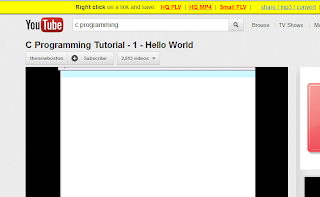
You will then see download links like shown.


Tips:
  • For even faster access, add the Bookmarklet to your links toolbar.
  • Works on any public webpage containing a YouTube video, and many other video sites.
  • Use the bookmarklet on pictures for rapid access to online image tools.
Posted by Fari at 11:50 PM No comments:
Email ThisBlogThis!Share to XShare to FacebookShare to Pinterest
Labels: Tips and Tricks

Sunday, July 29, 2012

How to UNDO a Sent Email Message

How to Undo a Sent Email Message

How to Undo a Sent Email Message
Hi all users, hope you all are fine and enjoying the hanging out with someone like me :) well toady I'm going to tell you you how to undo(recall )your e-mail messages from your gmail account, I can understand that some time when you get frustrated with someone and going to send him/her mail that contains you anger and frustration then simultaneously you remember to add/remove something or remembered that you have putted wrong things into the message(just kidding), and don't want it to be deliver, then this post will help you a lot.

Steps to follow :
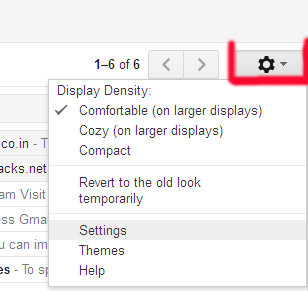
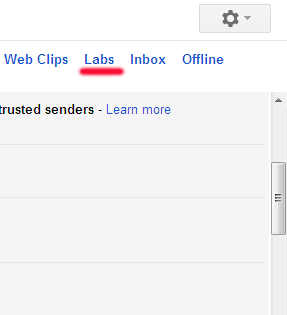
Step 1 : Go to your Gmail account and nevigate to the 'Setting' then Open 'Lab' like the below picture.
Step 2 : Under 'Lab' tab you will find many option but you here you need to choose the  'Undo Send' like below picture and enable it and finally click the  'Save Change' Button and save the changes.
Step 3:  Now go to  your Gmail account and compose a mail option and write Your Mail and send it, after sending the mail you'll be prompt by Gmail  that 'Your message has been Sent' with Undo and View message option.Click on Undo if you want to don't want the message to be sent.

Note : This option appears only for 10 Seconds.

Enjoy......:-)

Posted by Fari at 4:56 PM No comments:
Email ThisBlogThis!Share to XShare to FacebookShare to Pinterest
Labels: Tips and Tricks

How to Enable Right Click on Right Click Disabled Websites

How to Enable Right Click in Right Click Disabled Websites

Enable Right Click on Right Click Disabled Websites

Hello users, many of us might know websites where you've tried to save images or copy the contents of the website but you couldn't because they have prohibited their use of the right-click on their website.

Most websites use JavaScript to prohibit the use of the right-click in order to avoid their contents to be leeched or due to some other reason, so here we're going to tell the simplest and easiest way to enable it. Sounds very inserting ! isn't it?  . So lets get started.

1. First of all you need to download a Firefox a plug-in named "Web Developer 1.1.9" from this link:

https://addons.mozilla.org/en-US/firefox/addon/web-developer/
 
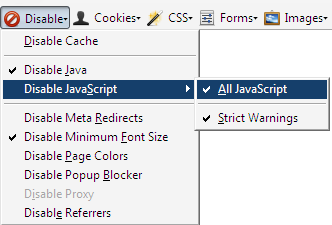
2. After installing the  pug-in simply restart the Firefox and you will get a new toolbar named "Web Developer Toolbar" now  click on  Disable button.


3. Select Disable Javascript.
4. Again select “All Javascript” option.


Note :- After doing your work don't forget to unchecked the disable java and disable JavaScript because most of sites requires JavaScript enabled in order to perform some specific task.
 
Enjoy......:-)
Posted by Fari at 4:33 PM No comments:
Email ThisBlogThis!Share to XShare to FacebookShare to Pinterest
Labels: Tips and Tricks, tutorial

Convert any Website to PDF for Offline Reading

Hi all users, today we are here to share a cool website with you, which allows you to convert any website/blog into PDF. Seems interesting ? Lets find out how to do it.


 Why would you want to convert a webpage to PDF:
  • You may want to store it locally to be able to view it offline.
  • You may want mail the webpage to friends.
  • You may have your own reasons. Right?
 To convert webpage to PDF visit Web2PDFConvert

  Enjoy...:-)
Posted by Fari at 4:26 PM No comments:
Email ThisBlogThis!Share to XShare to FacebookShare to Pinterest
Labels: Tips and Tricks

Way2sms Desktop Tool - Send Unlimited Free SMS

way2smsEveryone must be familiar with way2sms.com . 
After TRAI decreased the daily sms limit to 200, Free sms services  are highly popular now. Usually while sending sms from Way2sms.com, we can’t send unlimited charter’s sms.  and sometimes we are fed up of heavy Advertisements on the Site.
The Desktop tool comes in handy for those who use way2sms frequently.

Way2sms Desktop Tool:

This Desktop client tool used to send sms from your desktop.
You need to create an a/c in way2sms.com and then use this client tool.
This utility developed in dotnet framework.

Features of Way2SMS Desktop Client:

  • No need to login in browser
  • Unlimited character support
  • Import & export contacts
  • Remember login details
  • Auto update feature
  • Work in online mode
  • Work in local mode
  • Sends sms faster.
  • Search contacts
  • Search group
  • Contacts list
  • Group sms
  • No Ads

Download: 

Download Way2SMS Desktop Client 
 

It Requires .Net Famework 2.0:

Download .Net Framework 2.0

Posted by Fari at 4:01 PM 9 comments:
Email ThisBlogThis!Share to XShare to FacebookShare to Pinterest
Labels: Application, Free SMS, Tips and Tricks

Copy Text from Image


Text from the web can copied easily by dragging mouse over the text and select copy function but this become little bit tricky when talk about the Images, may be of any type like PNG, JPEG etc.

How many times it happens that you want some text from scanned Images or other Pictures?
I am sure it wont be less than ten times. Generally when we require text from Image file we simply type the whole text, this seems to be the only option we have. But there are large number of softwares and small tool available on the Internet that works on OCR ( Optical Character Recognition ) which can easily capture your desired text from Image file accurately. Most popular software that fall in this category is Microsoft Office OneNote.

How to Copy Text With Microsoft Office OneNote:

  1. Download a fresh copy of  Microsoft Office OneNote from here.
  2. Install it in your local drive
  3. Execute the Program.
  1. Open Image in Microsoft Office OneNote.
  2. Now select the entire image by  CTRL+A and right click on the image.
  3. Choose "Copy Text from Picture" option.

  1. Now paste your text in Notepad and enjoy.
Beside Microsoft Office OneNote there are also some software available on the Internet Which can perform the similar task. JOCR  is a freeware software which also used for the same task. So Now you can easily extract your favorite text from picture file by   Microsoft Office OneNote or JOCR.

Still find difficulty in this process then comments are always open for that.
Posted by Fari at 2:54 AM No comments:
Email ThisBlogThis!Share to XShare to FacebookShare to Pinterest
Labels: Tips and Tricks

Use Any Sim in Any MODEM Without UNLOCKING

Now-a-days Datacards are widely used by many peoples. But most of them are locked to networks like Aircel, Airtel, Idea,etc.

Only the sim of that same network can be used in the modem.

You have to unlock the modem in-order to use sim of different network.

But there is an easy way to use any sim in any modem without unlocking.

Just follow the Steps below:

1.Insert the Sim in the Modem.


2.  Modem show invalid SIM, just ignore it and close modem software.


3. Start NOKIA PC Suite.

4. Go to Nokia PC Suite "Connect to Internet" option


5. Go to Configure

6. Select your data card modem,and make all operator APN setting as like when we use Nokia mobile connection.


6. Finish set up.

7. Now connect to internet through PC suite.
 
Posted by Fari at 2:38 AM No comments:
Email ThisBlogThis!Share to XShare to FacebookShare to Pinterest
Labels: Tips and Tricks

One Step to Solve Computer Hanging


Many of us are facing a problem while working in a Computer.
Yeah you are right. Its System Hanging.

It will be awful if the system hangs while working on an important data.

If your system hangs about 2 or 3 minutes at startup, where you can't access the Start button or the Taskbar, it may be due to one specific service (Background Intelligent Transfer) running in the background. Microsoft put out a p@tch for this but it didn't work for me. Here's what you do:

1. Click on Start/Run, type 'msconfig', then click 'OK'.
2. Go to the 'Services' tab, find the 'Background Intelligent Transfer' service, disable it, apply the changes & reboot.

Thats all..
Cheers......:-)

Posted by Fari at 2:09 AM No comments:
Email ThisBlogThis!Share to XShare to FacebookShare to Pinterest
Labels: Tips and Tricks

7 Sites to Download Youtube Videos in HD

Download Youtube Video  
7 SITE TO DOWNLOAD YOUTUBE VIDEO IN HD
 
YouTube is definitely the #1 video sharing website on the Internet. Some people feels difficulty in downloading the Videos from Youtube. So here i am listing top sites to download Youtube Videos easily.

(1) Clipconverter
This is a new website and download YouTube videos in HD. It is very fast to convert a video from YouTube. It is also a video converter, you can convert videos by uploading too. After downloading you can watch videos on your favorite device.

(2) Keephd
It is a good tool and famous one for YouTube videos in HD. You can download HD videos and other video formats as well3gp and flv. It supports some other sites as well.
 
(3) Keep-Tube
This is a HD YouTube video downloader, you can also use greasemonkey and Firefox add-on. It also supports other video sharing sites.
 
(4) Savevid
It is an interactive website, on this website you can see live videos that other users are downloading via this website.
 
(5) Youtubesnips
You can download YT videos in three different formats are as 3gp (fro mobile), flv (lower quality) and MP4 (HD). You can use this tool to download videos directly or you can use their bookmarklet and URL interface is by default.
 
(6) Forinside
It is also an online video converter, so you can use this tool to convert a video by uploading going to file menu. To download a video you have to copy and paste a video link. This site also support other websites but YouTube is by default and HD format is also bydefault.
 
(7) TubeZen
It let you download videos in 3Gp, Mp4, HD, Flv, Mp3 and Wmv. You can search videos on this site and download.
Posted by Fari at 1:14 AM No comments:
Email ThisBlogThis!Share to XShare to FacebookShare to Pinterest
Labels: Tips and Tricks

Saturday, July 28, 2012

Make your Text Inverted

¡¡¡sɹǝbboןq uɐıɥɔǝʇ oןןǝɥ

Want to know how to make your texts Upside Down like this¿¿¿
It's very Simple :-)

Just go to www.FlipText.org

 
And Enjoy :)


Even you can copy and pasted this inverted text in Facebook, Twitter and shock your friends......:-)
Posted by Fari at 10:56 PM No comments:
Email ThisBlogThis!Share to XShare to FacebookShare to Pinterest
Labels: Tips and Tricks
Older Posts Home
Subscribe to: Posts (Atom)

Blog Archive

  • ▼  2020 (2)
    • ▼  March (2)
      • Best Hosting Service for Startups and Small Busine...
      • Spending Money to Learn Digital Marketing Is Becom...
  • ►  2017 (1)
    • ►  March (1)
  • ►  2013 (4)
    • ►  June (3)
    • ►  March (1)
  • ►  2012 (28)
    • ►  December (5)
    • ►  August (12)
    • ►  July (11)
  • ►  2011 (8)
    • ►  November (1)
    • ►  September (2)
    • ►  August (1)
    • ►  April (1)
    • ►  March (1)
    • ►  January (2)

Categories

  • 1 year Genuine Licence Key (2)
  • access facebook (1)
  • Android (3)
  • Application (7)
  • Box.net (1)
  • Cloud Storage (1)
  • Flash Player (1)
  • Free Antivirus key (2)
  • Free Avast (1)
  • Free call (1)
  • Free SMS (1)
  • Free Stuff (5)
  • Giveaway (1)
  • idevice (1)
  • iTunes (1)
  • iTunes Alternative (1)
  • Offer (1)
  • Offline Installer (3)
  • promotion (4)
  • shortcut virus (1)
  • Skype (1)
  • SynciOS (1)
  • Tips and Tricks (16)
  • tutorial (5)
Watermark theme. Powered by Blogger.